
Overview
The user-controlled settings feature allows clients to add user-specific custom settings within the Eleos application that the user/driver can manage themselves to have certain settings enabled/disabled by default.
User-controlled settings are displayed based on the custom settings Form created for your application. Any setting changes by the driver are stored within the ELEOS.UserSettings table within your TMS database. These values are saved and displayed to the driver whenever they review the settings page within their app. Settings within the table are used elsewhere within the database to control user-specific functionality. Default navigation route options are an example of custom settings that this feature can support.
For more information on other settings that are configurable per user that are standard to Eleos, visit Eleos’s documentation on Settings. Their documentation also includes general information on custom settings, however the information below in this document will provide further details on how these custom settings are implemented specific to the ASR integration.
How To Set Up User-Controlled Settings
For the user-controlled settings to work and display in the application Settings screen, a few things need to be in place:
- A Form containing setting fields to specify all the values that are being added to the application must be created within the Eleos App Manager. For additional instructions on how to create forms, please see our documentation: Drive Axle - Managing Your App.
- The value of the setting "CustomSettingsFormCode" in ELEOS.Settings should equal the form code that was created in step 1. This will be retrieved and included as the custom_settings_form_code property in authentication responses. This is necessary to ensure the form's fields are added to the Settings page within the driver’s application.
- Within the authentication process, User Custom scripting will need to return the stored User Settings to prepopulate the selected values on the driver’s application.
- Within your TMS, any scripting that is intended to interact with user controlled settings would need to be modified to support them. Using User Navigation Route Options as an example, the Stop Navigation scripting returns the values from ELEOS.UserSettings before returning the fleet defaults.
User-Controlled Settings For Navigation
The User-controlled settings feature can be implemented for navigation settings that the user can change within the application. This way the Route Options screen can be preset with the driver’s preferred defaults every time the driver starts navigation. This prevents customizations needing to be made by the driver every time navigation begins and allow the ability for drivers to change the following default values for themselves within the “Navigation Defaults” settings:
- Avoid Dirt Roads
- Avoid Toll Roads
- Avoid Tunnels
- Enable Traffic Rerouting
- Vehicle Height
- Vehicle Width
- Vehicle Length
This user-controlled settings feature for navigation is not enabled by default and requires the proper setting and form configured to work. For additional information or assistance implementing this feature, please contact support for further assistance.
How To Change Navigation Settings In The Application
Go to the Settings screen within the application by tapping the Settings menu item.

Update the appropriate setting value(s) in “Navigation Defaults”. In the example below, the “Avoid Dirt Roads” setting is enabled and the Truck Height is set to 14 ft: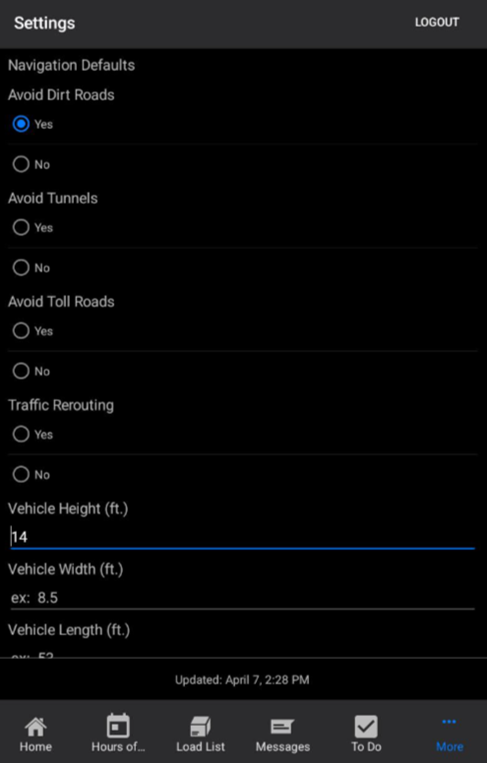
Then go to the Loads List screen in the application and be sure to refresh the application by pulling down on the loads list. After refreshing, a user can click on a stop and the “Route to Stop” button to start turn-by-turn navigation. Once pressed, the User-Setting route options should be reflected by default.

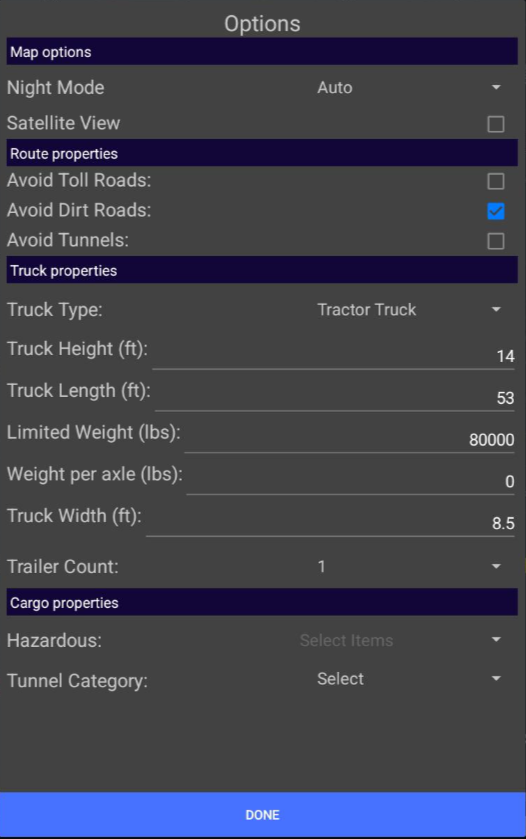
In the above example, you can see the “Avoid Dirt Roads” setting is enabled, and the “Truck Height” is 14ft. For the settings that were not set in the “Navigation Defaults” application settings for the user, they are showing the integration default settings. For more information on how to set the default Route Options for all users, please see our document: Eleos - How to Control Navigation or Trip Planner Features.
Drivers are still able to change Route Option values on a per-route basis, but the user-controlled navigation settings feature allows drivers to change common navigation settings so that they don't have to re-enter them each time they're navigating.
Note that there can be some strange app/API behavior when changing multiple settings values at the same time, before one was finished updating. Eleos has designed the Settings page so that when a single value is changed, it sends a PUT to the integration’s Authentication endpoint to update that setting almost immediately. A successful update should trigger a refresh for the user, displaying their selected (or changed) value maintained. The update request will not include every setting on the page, seemingly only those that have been modified. When checking one box, then checking another before the update from the first box was reported as complete. This causes the application to send multiple update requests in rapid succession. This can result in the screen updating repeatedly as the application attempts to catch up. This seems to be inherent to how Eleos handles settings updates and isn't something we can control through the integration. Rest assured, the application will sort itself out on its own and display the selected settings appropriately.
For more information on Navigation and Trip Planner Features, please see our document: Eleos - How to Control Navigation or Trip Planner Features.