
Contents
- Overview
- When This Process Occurs
- Appsettings Configuration
- How Shipment Logs Are Attached And Detached
- Detaching Shipment Logs From Geotab
- Attaching Shipment Logs From Geotab
- What Information Is Included On Shipment Logs
Overview
The GeotabShipmentLogService is a configurable service within the integration that is triggered after each time loads are refreshed and is responsible for automatically managing shipment logs within Geotab by attaching and detaching shipment logs as drivers complete their loads. This automatic management provides a more seamless experience for drivers so that they can remain within the Eleos application and let the GeotabShipmentLogService handle making the necessary updates in Geotab:
When This Process Occurs
After the LoadsController responds to updates to users loads such as when they interact with loads in their loads list, and handles processing for this initial loads response, then as a post response, the GeotabShipmentLogService gets triggered where it first checks the proper appsettings are enabled and then validates that the user on the load has the correct telematics provider.
Appsettings Configuration
While a customer using Geotab should already have Geotab enabled and their Geotab database configured, the following settings are ones that should be confirmed to be enabled and configured for the GeotabShipmentLogService to be able to retrieve and update shipment logs from the connected Geotab database:
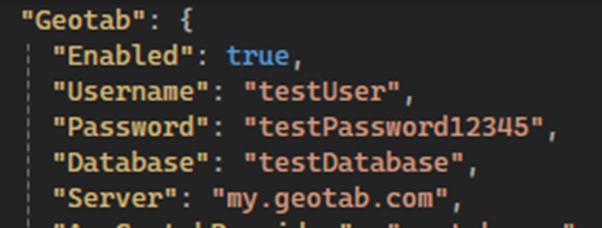 These Geotab settings should be configured to enable Geotab and point to a valid database where shipment logs can be retrieved and updated.
 This Geotab setting should be configured to match your Geotab provider which is usually the value shown in the screenshot above “geotab-asr” but can be confirmed by checking the provider also set for the “GeotabProvider” database setting within the ELEOS.Settings table.
 This setting is what can be enabled and disabled for finer control of whether the GeotabShipmentLogService can manage attaching and detaching shipment logs.
How Shipment Logs Are Attached And Detached
Once the GeotabShipmentLogService has verified the proper settings are configured to enable the feature and that the user has the correct telematics provider, it retrieves the current shipment log from Geotab using the username to make an API call and then gets the current load for the user to first verify we have either a current shipment log or current load. If the user has neither, then the GeotabShipmentLogService does not continue with any further processing.
Detaching Shipment Logs From Geotab
There are two scenarios where detaching shipment logs occur. The first is when the user has a current shipment log but not a current load. This is an indication that there is still an active shipment log that needs to be handled and detached within Geotab.
The second is when the user has both a current shipment log and current load, but the current shipment log is no longer active. The “ActiveTo” property on the shipment log is used to compare to the current date and time to determine if the shipment log is still active.
Attaching Shipment Logs From Geotab
When a user has both a current shipment log and current load a new shipment log will be created when the current shipment log’s document number does not match the current load’s shipment document number, otherwise if these document numbers match the current shipment log is still in sync with the current load and no further processing is needed.
What Information Is Included On Shipment Logs
When a new shipment log is created to be attached during the GeotabShipmentLogService, multiple API calls are made to Geotab to retrieve the user and vehicle data. The other necessary information needed when this new shipment log is created comes from the user’s current load. This information on the current load includes the “ShipmentShipperName”, “ShipmentDocumentNumber”, and “ShipmentCommodity” which correspond to the “Shipper name”, “Commodity”, and “Document number” shown on the shipment logs in the screenshot below. After all shipment log related information is retrieved, a final API call is made to push the shipment log updates to Geotab.
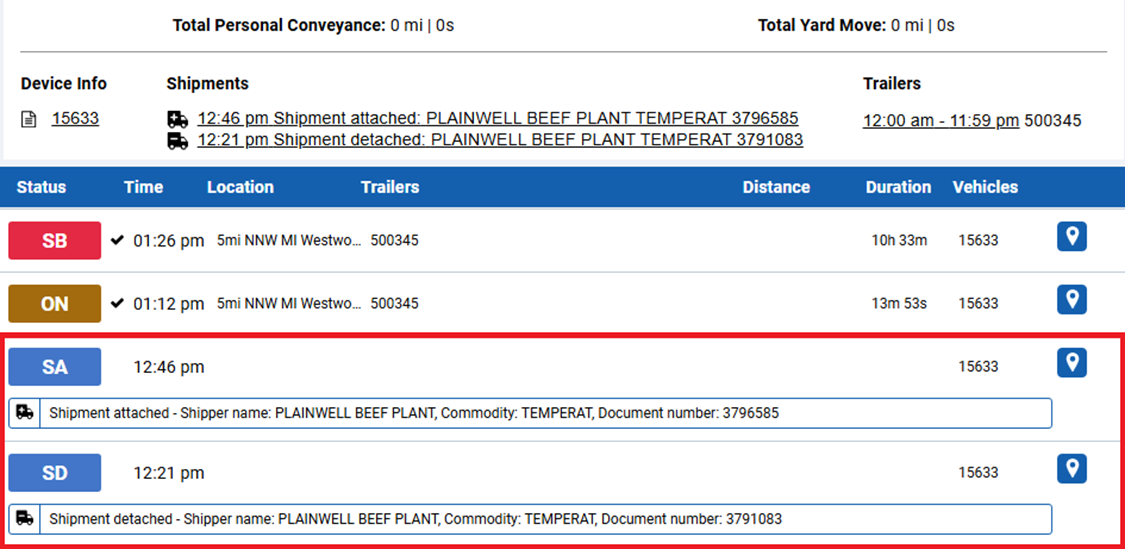
The other information next to the shipment logs seen within Geotab also notes the trailers these shipments are for. More information on trailer logs can be found in the document Geotab - Trailer Logs.